The simple answer to “When should you upgrade?” is when your device no longer does what you need, or when you want something new. But that’s not helpful if you’re trying to make an informed decision—is there a sweet spot when it makes more sense to upgrade rather than squeeze another year out of your current device?
The answer is yes, and the specifics depend on the type of device, whether it’s used for work or personal tasks, and how central it is to your daily life. Here’s our advice, including recommended timeframes and the warning signs that suggest it’s time to upgrade.
Mac Upgrade Cycles
Macs boast impressive longevity, particularly those with Apple silicon. With proper care, a Mac can easily remain productive for 5–7 years, though business environments typically benefit from shorter replacement cycles. Apple provides security updates for the current macOS version and the two previous versions, giving you roughly 2 years of security updates after a Mac loses support for the newest macOS.
For business use, we recommend a 3–5 year replacement cycle. Research shows that hardware problems increase after this point, performance lags compared to current machines, and resale value drops. The loss of productivity from slow performance and downtime outweighs the cost of a new Mac. If you don’t already have one, make an inventory of all your Macs, including purchase dates, and use it to create a replacement schedule. Also consider shuffling Macs around—an employee doing video work might get annual upgrades to the most powerful Mac available, with their old machines handed down to others.
Consider upgrading a Mac when:
- It no longer receives security updates: Once security updates stop, the Mac becomes increasingly vulnerable to attack. Intel-based Macs are coming due here—macOS 26 Tahoe is the last version to support them, so security updates will end in 2028.
- Its battery no longer holds a reasonable charge: For MacBooks, battery degradation often drives upgrade decisions. Although Apple will replace the battery for $149–$249, it’s usually more effective to upgrade the entire MacBook.
- Performance hampers productivity: If apps launch slowly, you see the spinning beach ball regularly, or you find yourself waiting on the computer throughout the day, a newer Mac will increase your productivity.
- Storage is perpetually low: Running low on storage can reduce performance, block software updates, and force distracting cleanups. If you can’t offload files to external or cloud storage, consider upgrading to a Mac with more capacity.
For personal Macs, you can extend the replacement cycle to 5–7 years or even more as long as the Mac meets your needs and continues to receive security updates.
iPhone Upgrade Cycles
Despite the rough treatment they often receive, iPhones are remarkably durable, with many users keeping them for 4–5 years without significant issues. Apple typically supports iPhones with software updates for 5–6 years after release, making them the longest-supported smartphones on the market.
For business use, we recommend a 3-year replacement cycle. That ensures employees always have devices that support the latest security features and iOS capabilities, including Apple Intelligence, which requires an iPhone 15 Pro or later. A 3-year cycle also means better resale or trade-in value—iPhones depreciate more gracefully than most technology, but that advantage diminishes after the third year.
For personal use, replace your iPhone when:
- Battery health drops below 80%: Check in Settings > Battery > Battery Health. Below 80%, you’ll notice significant performance throttling and shortened battery life. Replacing the battery for $69–$119 through Apple—it’s best to avoid third-party replacements—can extend a phone’s life by another 2–3 years if everything else works well.
- It no longer receives iOS updates: Once security updates stop, it’s worth considering replacing it. Typically, Apple releases updates only for the current version of iOS, but this year, it has been providing iOS 18 security fixes for the iPhone XR and XS models, and even released a few critical security updates as far back as iOS 15 and iOS 16.
- Storage is consistently full: If you’ve enabled Optimize iPhone Storage (Settings > Apps > Photos), turned on Offload Unused Apps (Settings > Apps > App Store), and are still frequently managing storage to make room for new photos, videos, and iOS updates, it’s time to upgrade.
- The camera no longer meets your needs: Camera improvements have been substantial year over year. If photography matters to you and your iPhone is more than 3–4 years old, a new model will deliver noticeably better results.
iPad Upgrade Cycles
iPads have a longer practical lifespan than Macs or iPhones. It’s not unusual for an iPad to remain useful for 6–7 years, particularly for basic tasks like Web browsing, email, video streaming, and reading.
The upgrade trigger for iPads is usually one of three things:
- Battery life has declined noticeably: iPads from 2024 and later (starting with the M4 iPad Pro, M2 iPad Air, A17 Pro iPad mini, and A16 iPad) display battery health in Settings > Battery > Battery Health. For older iPads, you can check battery health using Mac apps like coconutBattery or iMazing. If capacity has dropped below 80% or the iPad no longer holds a charge through a typical session, it’s time to upgrade. Apple offers iPad battery replacement for $99–$199, but upgrading may make more financial sense.
- Performance becomes frustrating: iPads used for demanding tasks like video editing, illustration, or running multiple apps will show their age faster than those used for content consumption.
- Software support ends: Apple supports iPads for roughly 5–6 years. Once updates stop, security risks increase.
For business use with demanding workflows, a 3–5 year cycle makes sense. For general business use (email, documents, presentations), an older iPad will probably work well enough for 5–6 years. Personal iPads used primarily for media consumption can last until software support ends.
Apple Watch Upgrade Cycles
Apple Watch upgrade cycles depend heavily on how you use the device. Battery degradation is the primary limiting factor—most users report noticeable battery decline after 3–4 years of daily use.
Consider upgrading your Apple Watch when:
- The battery no longer lasts a full day: Check your battery’s condition on the watch in Settings > Battery > Battery Health. If maximum capacity has dropped below 80% or you’re charging midday to make it to bedtime, the battery has degraded significantly. Battery replacements cost $79–$99 from Apple, but given the watch’s age at that point, upgrading usually makes more sense.
- Performance feels sluggish: Newer watchOS versions can bog down older hardware. If apps take a long time to launch, Siri responds slowly, or the interface stutters, a newer watch will feel dramatically faster.
- New health features matter to you: Apple regularly adds meaningful health capabilities. Recent additions like sleep apnea detection may be worth upgrading for.
For most users, a 4–5 year upgrade cycle is reasonable. If you rely on your Apple Watch for health monitoring or use it heavily for workouts, you might prefer a 3–4 year cycle to ensure accurate sensors and reliable battery life.
Other Apple Devices
What about the other items in Apple’s product lineup?
- Apple TV: Most people can keep an Apple TV for 5–7 years without issue. The only real reason to replace an Apple TV HD or 4K is if performance has become sluggish or you want specific new features like Thread support for smart home devices.
- AirPods: Battery degradation is unavoidable in devices this small. Most users find that AirPods need replacement after 2–3 years as battery life diminishes. Battery replacement costs $49–$79 from Apple, but the economics and new features usually favor replacement.
- HomePod: HomePods have long useful lives with little reason to upgrade. Replace a HomePod only if it stops working or if you want features exclusive to newer models, like sound recognition for smoke alarms.
- AirTags: You can replace the CR2032 batteries in AirTags, so the main reason to replace an AirTag is if it’s lost or physically damaged. Apple released a second-generation AirTag with improved range, but if your current AirTags are working fine, there’s no compelling reason to upgrade.
- Vision Pro: There’s now an M5-based Vision Pro, but it’s a modest update—if you have the original M2-based model, there’s no reason to upgrade. If you have a Vision Pro, enjoy it—you’re still pretty much on the bleeding edge.
If you’re unsure whether it’s time to upgrade a specific device, we’re happy to help you evaluate your options.
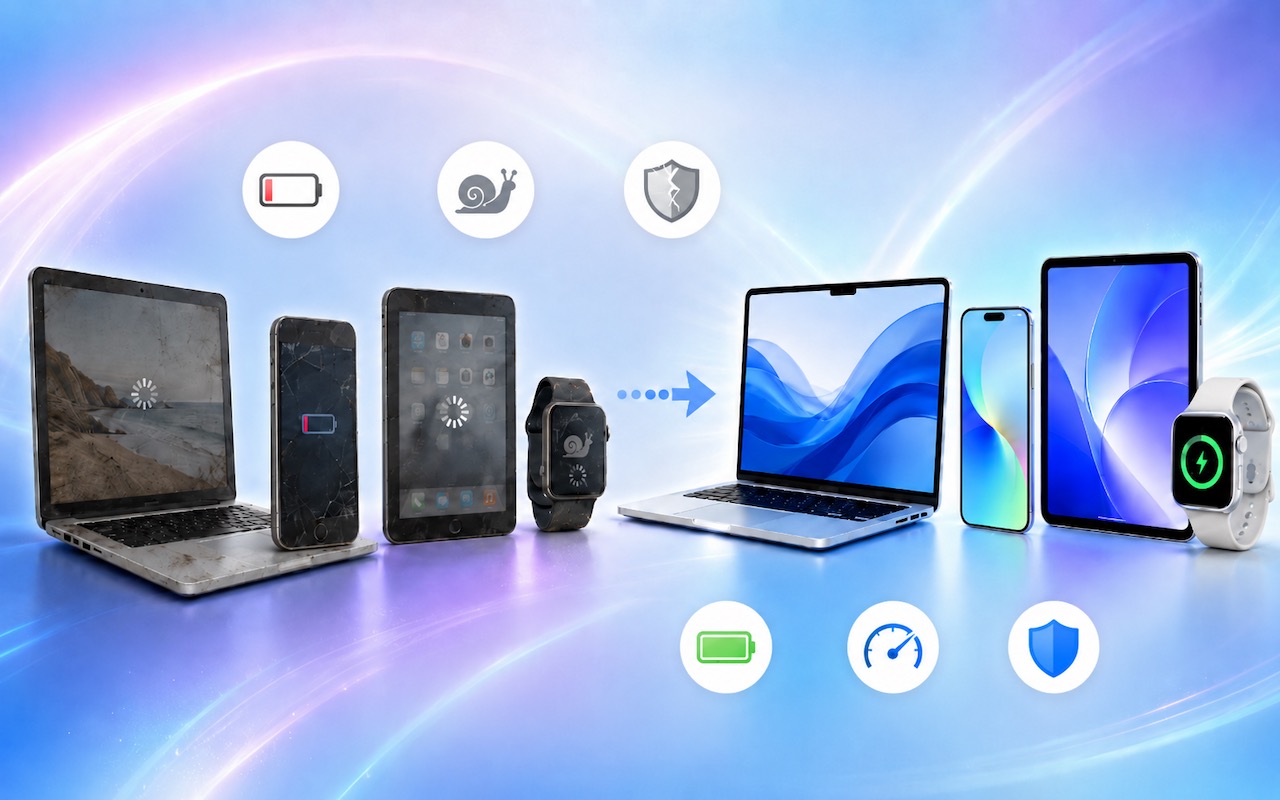
(Featured image generated by Adam Engst with ChatGPT)
Social Media: When’s the right time to upgrade your Mac, iPhone, iPad, or Apple Watch? The key warning signs: a battery that no longer lasts all day, performance lags, and the end of security updates. Here’s how to time it right.