
If you use Shared Albums to collect job-site photos or share progress with clients, new options in macOS 27, iOS 27, and iPadOS 27 change image quality and whose iCloud storage the photos use.
New permanent shared albums preserve the full resolution of your photos and videos, but count against the album owner’s iCloud storage, including photos and videos uploaded by other participants. That means a busy project album can fill your account even when you haven’t added anything yourself. Apple’s Shared Albums limits explain the new rules.
What Changed and What Didn’t
Previously, Shared Albums reduced most photos to 2048 pixels on the long edge and delivered videos at up to 720p resolution. The new albums preserve original formats and full resolution, making them more useful when you need to inspect a detail in a job-site photo or provide images for a client’s publication. Apple documents the quality differences.
The storage rules now depend on the album:
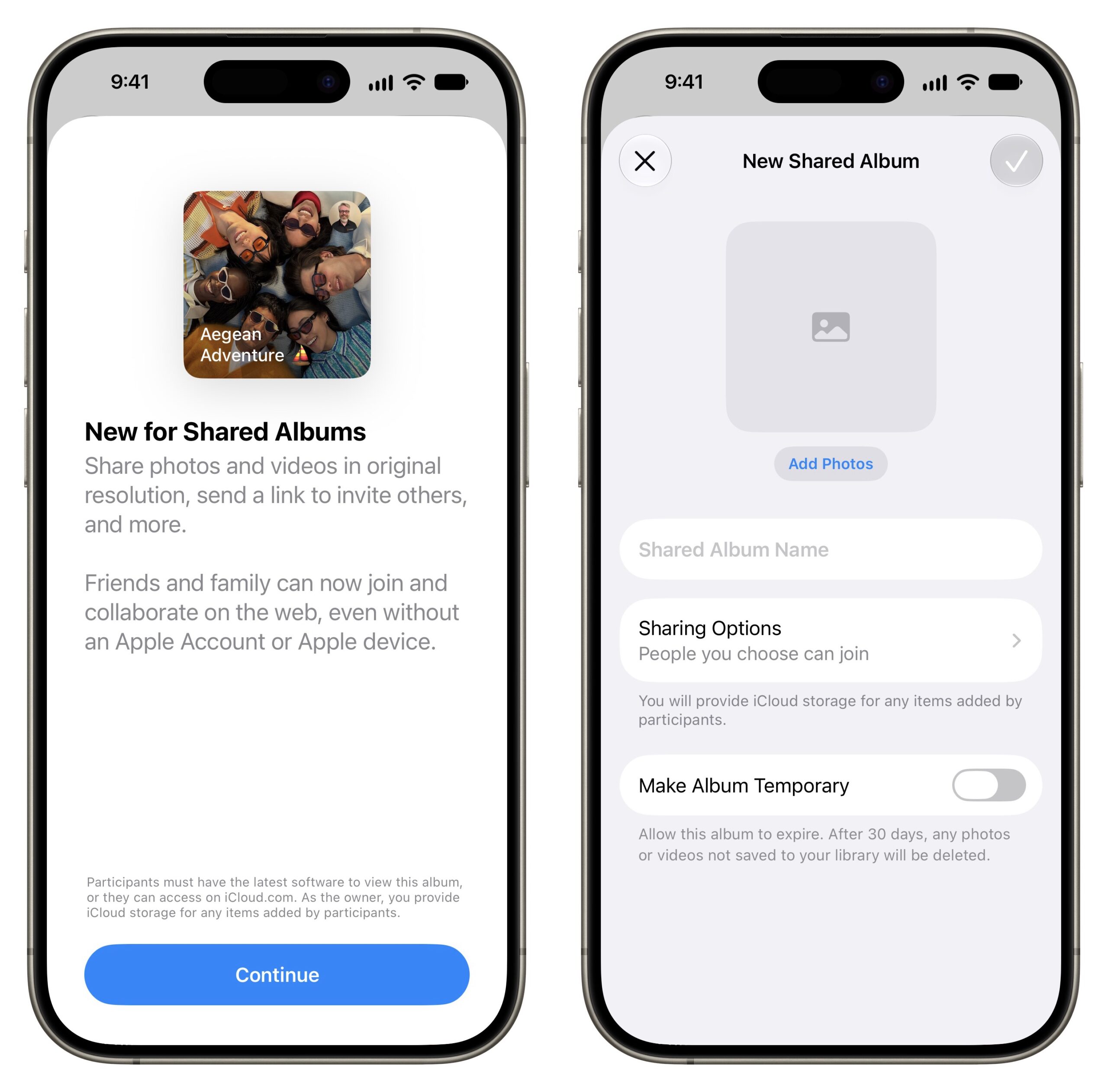
- New permanent albums: On an iPhone or iPad running version 27, open Photos, tap Collections, scroll to Shared Albums, tap Shared, and tap the Add button. Name the album, leave Make Album Temporary turned off, and tap Done. New albums created on a Mac or Apple Vision Pro running version 27, or on iCloud.com, use the same storage rules: everything added, including contributions from other people, counts against the creator’s iCloud storage. Apple shows how to create an album.
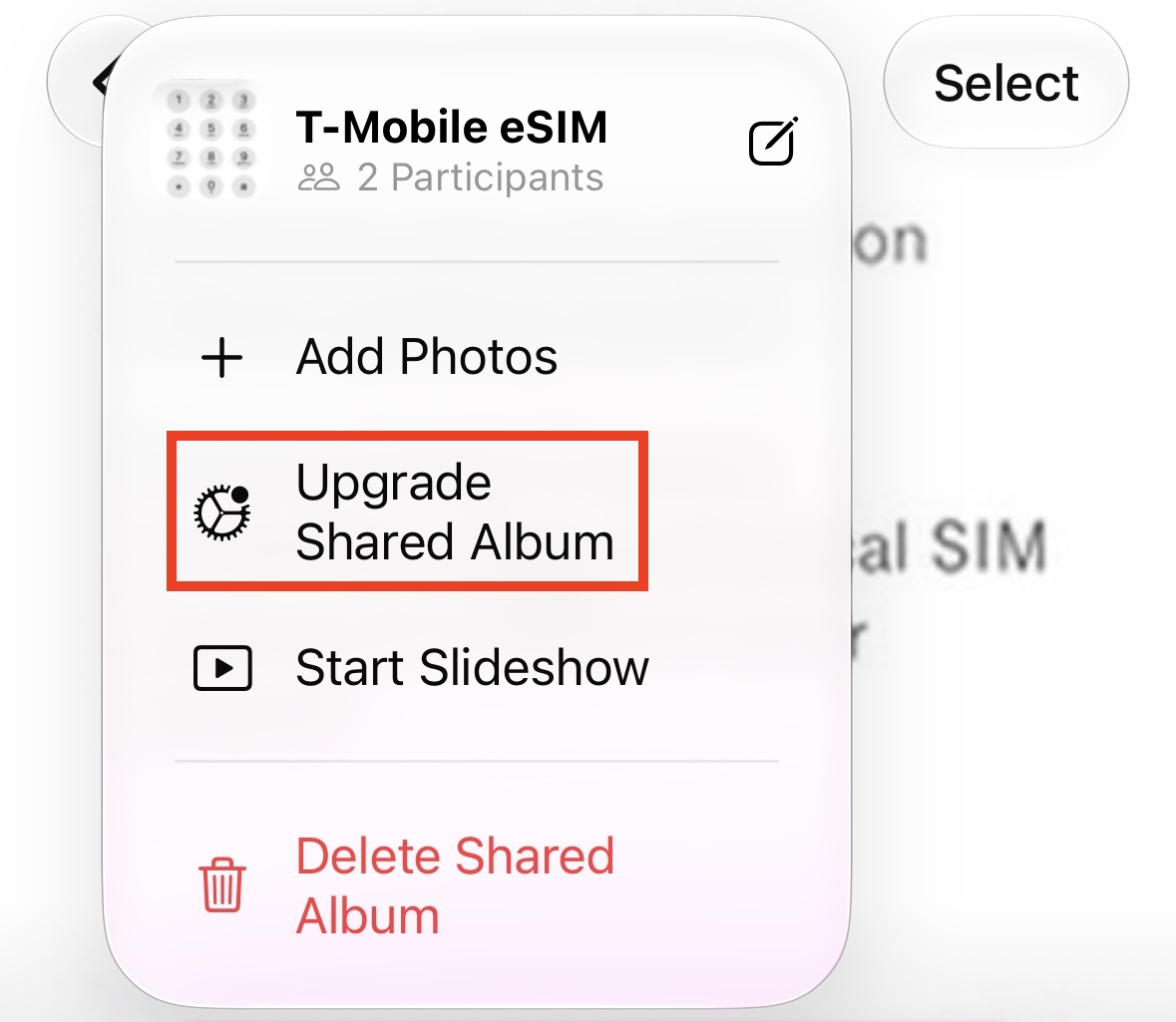
- Existing older albums: Updating your device does not upgrade albums created in version 26 or earlier. Their shared copies remain stored in iCloud without counting against anyone’s allowance. To check one on an iPhone or iPad, open the album and tap More. On a Mac, Control-click the album in the sidebar. If you see Upgrade Shared Album, leave it alone to keep the old storage and image-quality rules.
- Older albums you upgrade: To change a Shared album deliberately, open it in Photos on an iPhone or iPad running version 27, tap the More button, then tap Upgrade Shared Album. On a Mac, select the album under Shared Albums in the Photos sidebar, Control-click the Shared Album, then click Upgrade Shared Album. Photos and videos already in the album remain exempt; anything added afterward counts against the owner’s storage and will be shared at full resolution. Upgrading does not restore detail lost from older uploads. See Apple’s upgrade instructions.
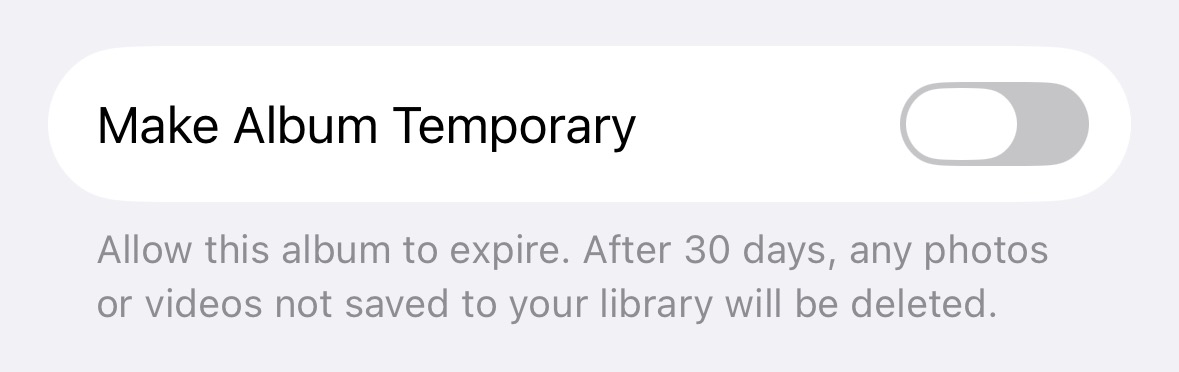
- Temporary albums: Follow the new-album steps above, but turn on Make Album Temporary before tapping Done. These albums don’t use your iCloud storage and can hold up to 5000 items, but they expire after 30 days. Save anything you need to keep. If you later turn off Make Album Temporary in Manage Shared Album, its contents begin counting against the owner’s storage. Apple explains temporary albums.
Why a Shared Album Can Disrupt Other Work
If you create a renovation album and invite subcontractors to contribute, their uploads use your storage allowance, not theirs. Buying more storage for a contributor will not give your album more space.
A full iCloud account can also cause trouble beyond the project photos. Apple says that running out of storage prevents iCloud backups, stops new uploads to iCloud Photos, and keeps iCloud Drive and other iCloud apps from updating across devices. It also prevents sending and receiving messages through an iCloud email address.
Permanent Shared Albums in version 27 also require iCloud Photos to be enabled. Apple includes that requirement in its iPhone and iPad setup instructions. If you turn on iCloud Photos to use the new albums, your photo library also starts uploading to iCloud. Review its size before enabling it, especially on a device containing years of photos.
What to Check When Storage Fills Up
Before deleting anything or changing a subscription, work through these checks:
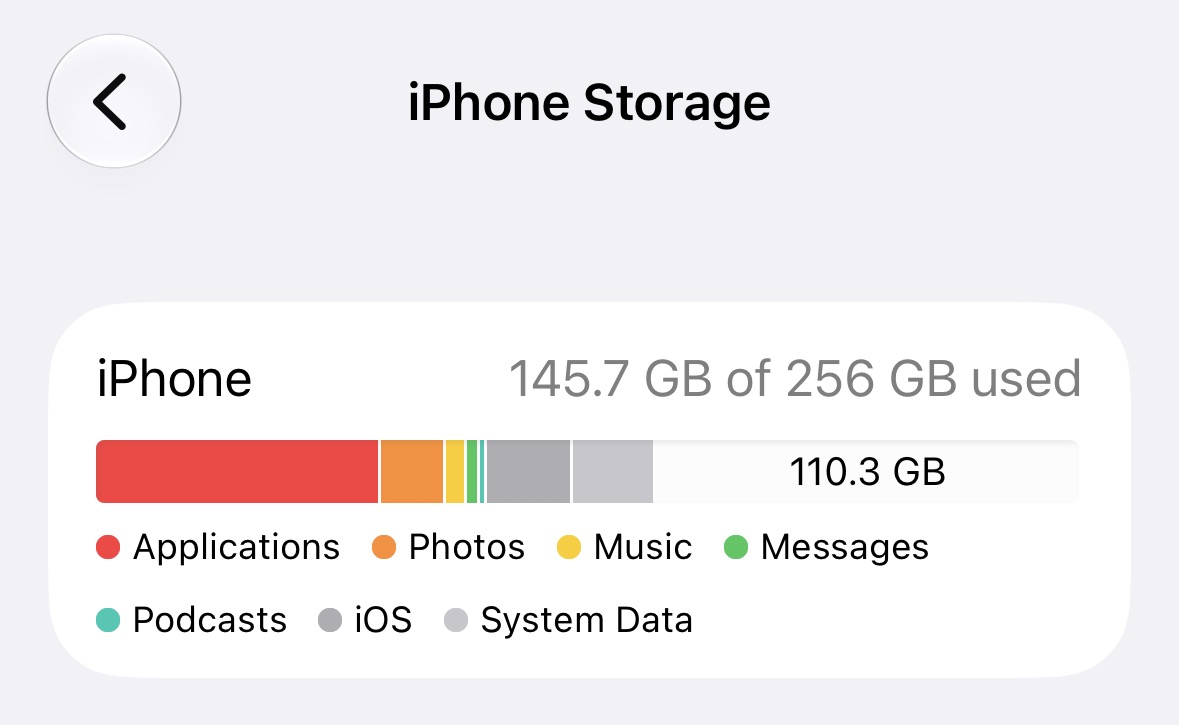
- Identify which storage is full. On an iPhone, Settings > General > iPhone Storage shows the device’s capacity. Settings > Your Name > iCloud shows cloud storage. On a Mac, open System Settings > Your Name > iCloud. Deleting an unused app from the phone won’t free space for an album stored in iCloud. Apple explains the distinction.
- Check the album owner’s account. On the owner’s iPhone or iPad, open Settings > Your Name > iCloud, then tap Storage or Manage Account Storage. On a Mac, open System Settings > Your Name > iCloud, then click Manage. Review which apps and features consume the most space. Apple provides these storage-checking instructions.
- Ask what changed recently. Look for a new permanent album, an older album that was upgraded, a temporary album made permanent, a batch of videos, or iCloud Photos turned on for the first time. Any of these can explain an increase the owner didn’t cause directly.
- Check the cause of an upload failure. Apple’s Shared Albums troubleshooting guide specifically recommends checking the owner’s available iCloud storage. Also check the Internet connection and whether other participants can access the album. If only one person can’t contribute, review their Can Add Photos permission. Participants using older software may have read-only access to new or upgraded albums; they can use iCloud.com or update their devices.
- Choose how to make room. You can increase the owner’s iCloud+ allowance or remove content you no longer need after preserving required project records. Optimize Storage frees space on the device, not in iCloud, because the full-resolution originals stay there. Apple explains how iCloud Photos handles storage.
If you contact us for help, include the exact warning, the album’s owner, whether it’s temporary or permanent, and any recent album changes.
Set Up the Next Project to Avoid Surprises
Before creating an album, agree on who will own it and provide the storage. For business projects, follow your organization’s account policy and consider what happens when the employee who created the album leaves.
Ask contributors to upload useful selections. A few clear photos of an installation may serve the project better than every shot taken that afternoon. Agree on when videos are necessary and where completed project records will be retained.
Before deleting any shared album, save and verify the material your business needs. Deleting the album removes it for participants too; copies already saved to their own libraries remain. Apple describes the deletion effects.
For long projects, review storage use periodically, so syncing doesn’t stall.
(Featured image by iStock.com/fadfebrian)
Social Media: Photos in Apple’s Shared Albums never used to count against your iCloud storage. New permanent albums preserve full-resolution photos but use your allowance. Here’s what changed and what to check when project photos stop syncing.