
Reading articles on the Web has become fraught with distraction. Ads are terrible, of course, but publications also inundate you with navigation links, pop-ups encouraging you to subscribe, popular article lists, and more. Even worse is when an article requires multiple clicks or taps to keep reading. It’s maddening—you just want to read and get on with your day!
The easiest, built-in solution to this admittedly first-world problem for Apple users is Safari Reader on the iPhone, iPad, and Mac, which you can use to “hide navigation menus and other distracting items.”
Apple is careful not to say that Reader hides ads—which it does, most of the time—to avoid conflict with publications that rely on advertising, some of which may even be placed by Apple itself.
Beyond hiding distracting items, Reader displays articles as a single page and automatically generates a summary and table of contents for longer articles to make navigation easier.
Even better, you can configure Safari to show articles in Reader automatically for specific websites, so you don’t have to turn it on manually for each article.
Here’s how to use it.
Switch to Reader
Since Reader’s reformatting would break many non-article Web pages, Safari offers Reader only when you’re viewing a page that it can reformat. As a reminder, Safari on the iPhone and iPad shows a brief “Reader Available” mention in the address bar when you open a Reader-compatible page.
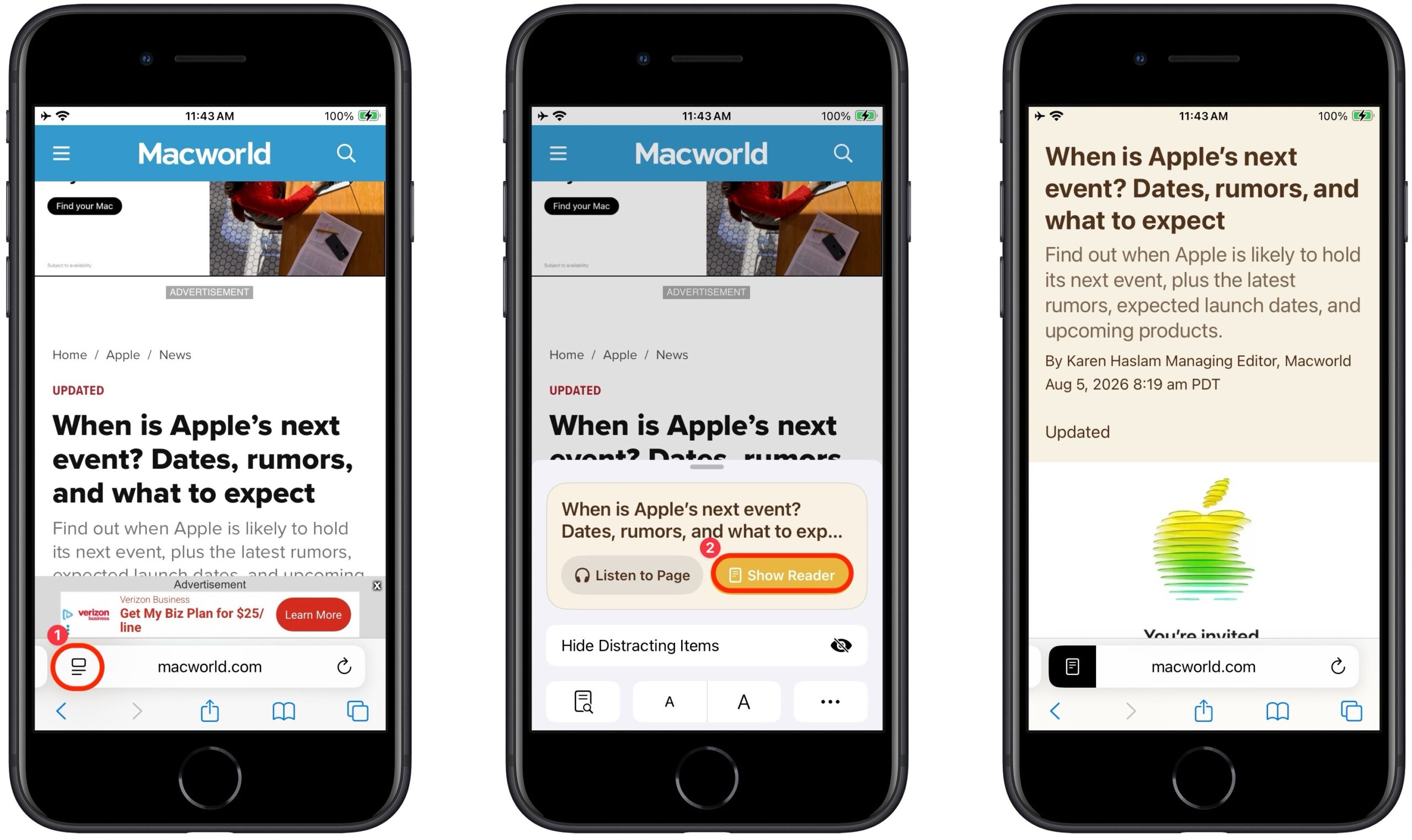
To display a compatible page in Reader, tap the website  button at the left of the address bar ➊, then tap Show Reader ➋. Safari immediately reformats the page, removing many extraneous items and potentially changing the background and font.
The reformatting can be even more significant in Safari on the Mac, where websites often add columns of ads, pop-ups over the text you want to read, and more.
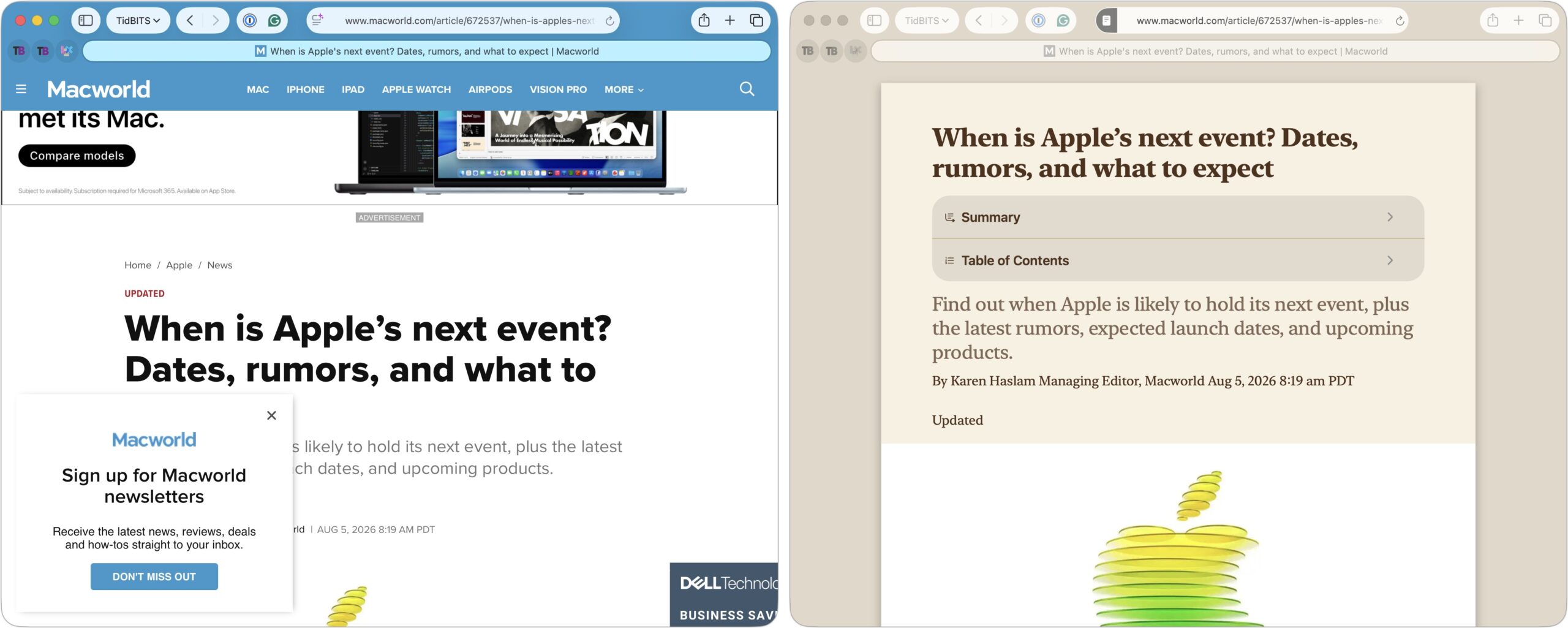
When Reader decides a page is long enough and has enough headings, it automatically generates a summary and table of contents, displaying them in expandable sections at the top. This feature is, frankly, a little random. We couldn’t always predict when Reader would generate those sections, and it even sometimes varied by device.
Adjust the Look of Reader
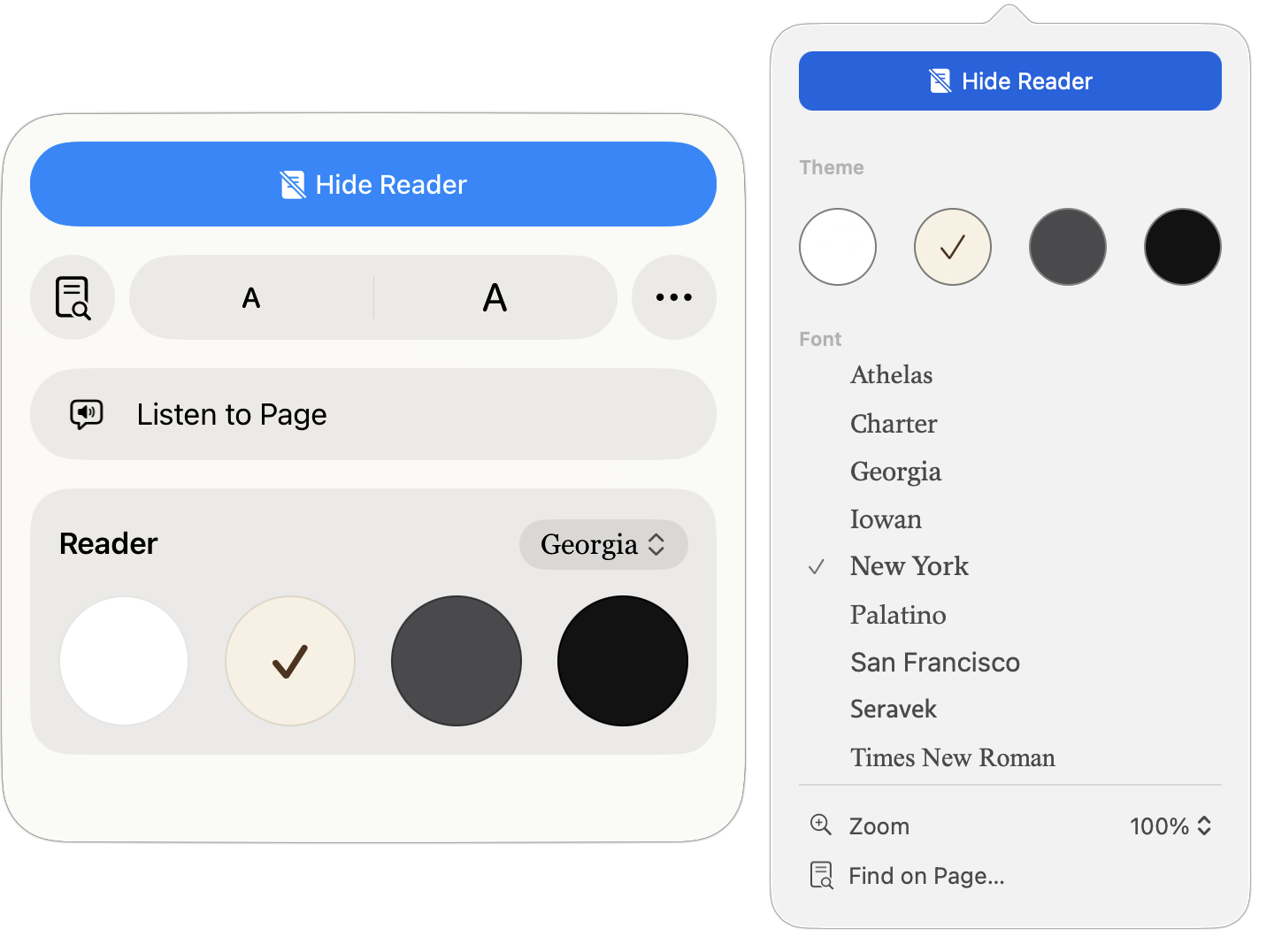
By default, Reader uses a white background with Apple’s San Francisco sans-serif font. That’s entirely acceptable, but you can switch to a sepia, gray, or black background, choose from a selection of serif and sans-serif fonts, and increase or decrease the font size.
Tap the page  icon at the left of the address bar to pick from those options.

The presentation looks a little different on the iPad (left) and Mac (right), but the options are essentially the same.
Use Reader Automatically
For websites you regularly read, it’s best to set Reader to kick in automatically. It won’t reformat pages that don’t make sense, such as section pages that contain links to multiple articles. How you enable this option varies by platform:
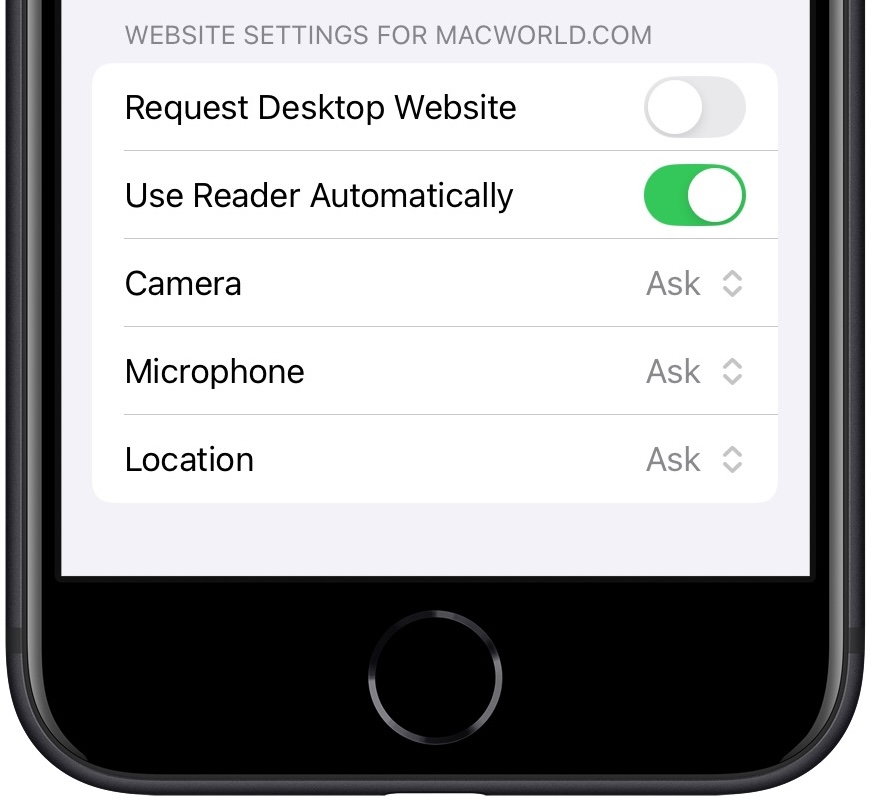
- iPhone and iPad: Whether or not you’re in Reader, tap the icon at the left of the address bar, tap the ••• button, scroll down in the page menu, and turn on Use Reader Automatically.
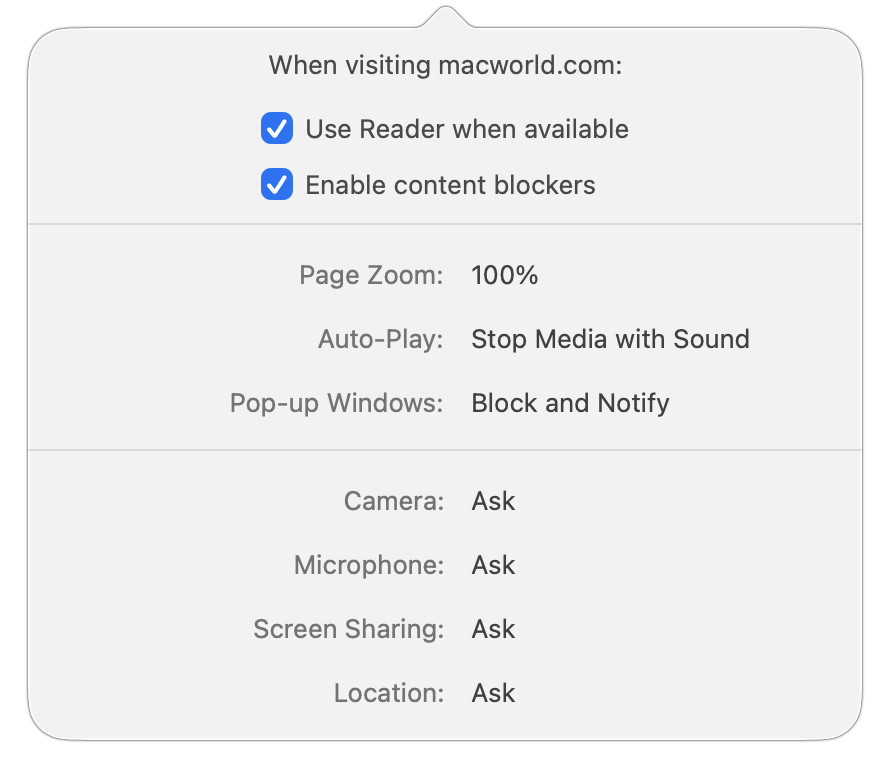
- Mac: When you’re not in Reader, click the website icon at the left of the address bar, choose Website Settings, and select “Use Reader when available.”
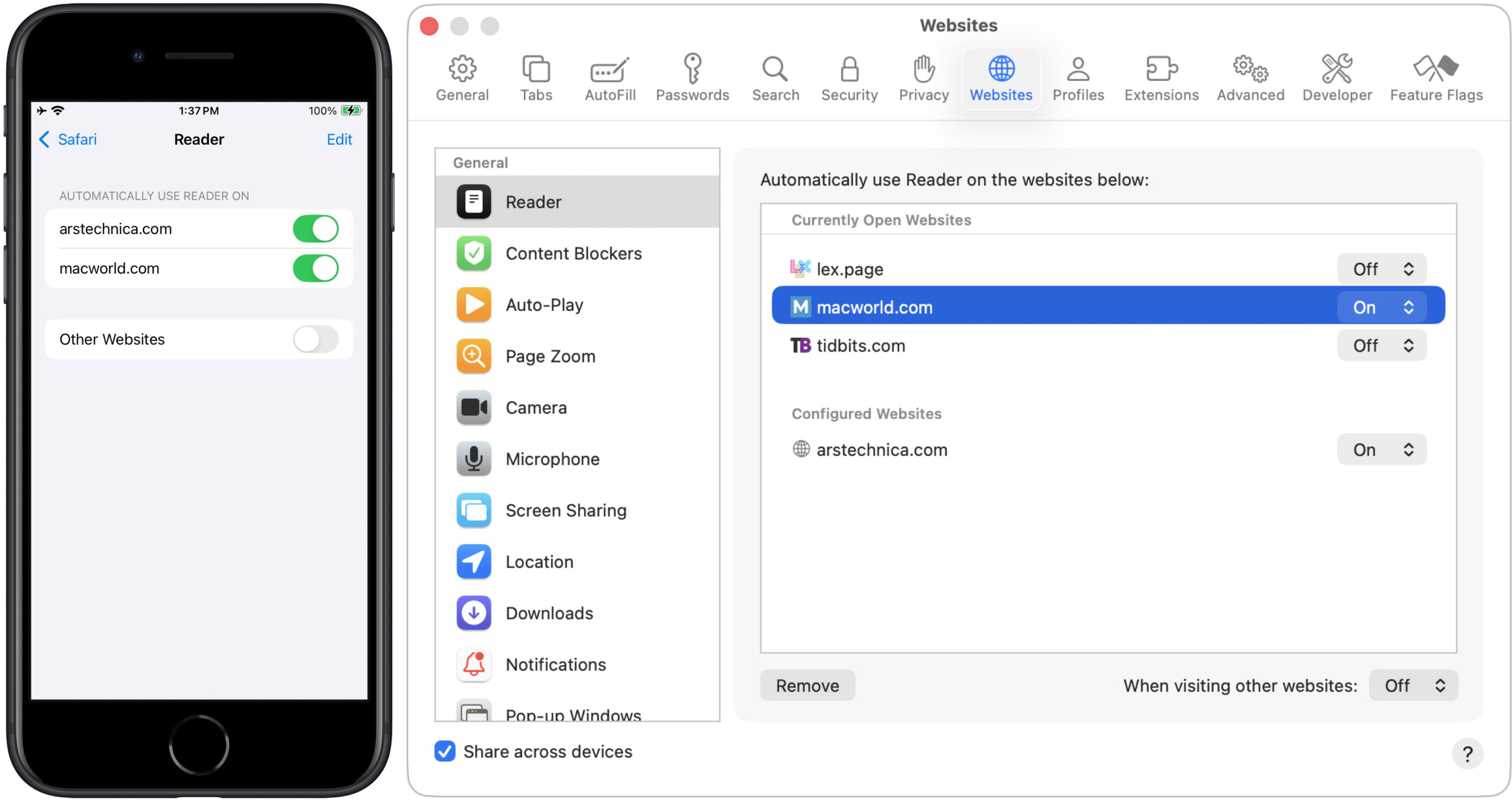
If you want to manage which sites use Reader automatically all together, on the iPhone and iPad, open Settings > Apps > Safari > Reader (way at the bottom), and on the Mac in Safari, choose Safari > Settings > Websites.
Helpfully, Safari syncs appropriate website settings between devices via iCloud, so once you set a site to use Reader automatically, all your other devices will default to that as well.
Switch Back to Standard View
Although Reader works well most of the time, it’s possible to run across an article with interactive elements that don’t display in Reader. If something seems wrong about an article in Reader, you can switch back to the standard presentation of the page. Just tap the page icon at the left of the address bar and tap Hide Reader.
The hardest part of using Reader is getting started. Once you’ve become accustomed to switching into it and setting it to trigger automatically for websites you visit regularly, you’ll find reading the Web easier, more relaxing, and less likely to tempt you down a rabbit hole of additional content.
(Featured image based on an original by iStock.com/Tippapatt)
Social Media: Tired of ads and pop-ups interrupting your reading? Safari Reader reformats Web articles for distraction-free viewing on the iPhone, iPad, and Mac—and it can even activate automatically.