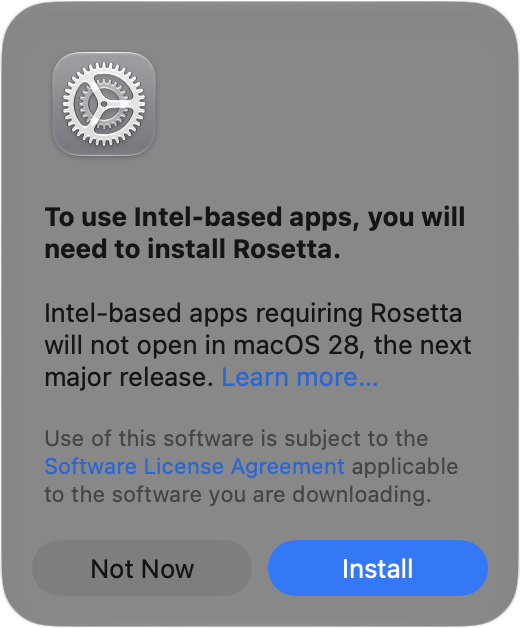
Has an older app stopped opening after you upgraded to macOS 27 Golden Gate? The missing piece may be Rosetta, Apple’s software that lets Intel-based apps run on Macs with Apple silicon. Even if you installed Rosetta years ago, Apple’s release notes say it isn’t automatically restored after the upgrade. Fortunately, macOS 27 still supports it. With your Mac connected to the Internet, open the affected app. If you’re prompted to install Rosetta, click Install and enter your Mac login credentials when requested. You can also install Rosetta using Terminal: open Terminal from Applications > Utilities, enter softwareupdate –install-rosetta, press Return, and follow the on-screen instructions. Then try the app again. Installing from Terminal lets you set it up before you need it. Reinstalling Rosetta won’t resolve every compatibility problem, but it’s worth checking before replacing software you rely on. Also check whether the developer offers an Apple silicon or Universal version, since general Rosetta support ends after macOS 27.
(Featured image by iStock.com/Claudio Caridi)
Social Media: An Intel-based app that worked before your macOS 27 upgrade may need Rosetta reinstalled. Here’s how to restore Apple’s translation software.