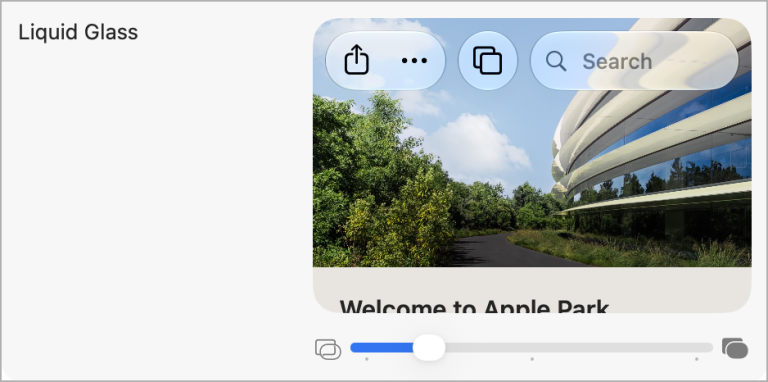
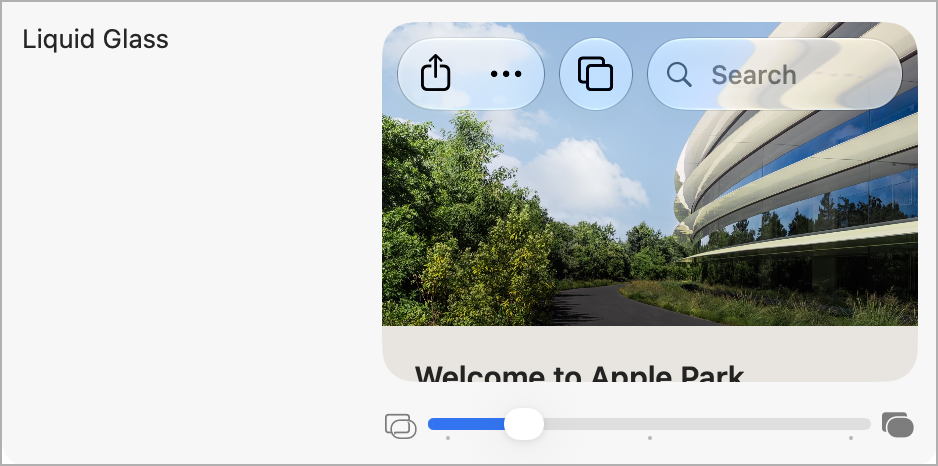
If macOS 27 Golden Gate’s Liquid Glass look makes toolbars, sidebars, or the Dock hard to read, you’re no longer stuck with macOS 26 Tahoe’s two choices of Clear and Tinted. Golden Gate asks you to set a new slider at the end of setup. If you accepted the default (the middle) or now regret your choice, open System Settings > Appearance and drag the Liquid Glass slider to the right for a more opaque, tinted look. Changes preview live as you drag, and the far right is as opaque as Liquid Glass gets. For solid backgrounds everywhere, turn on System Settings > Accessibility > Display > Reduce Transparency, which switches Liquid Glass off entirely and turns transparent areas like the Dock and menu bar solid gray. Be careful afterward: touching the Liquid Glass slider turns Reduce Transparency off, and it stays off until you turn it back on. (To change only the menu bar, open System Settings > Menu Bar and turn on “Show menu bar background.”) Try the slider first and turn on Reduce Transparency only if the slider isn’t enough—or ask us to set up your Macs the way you like them.
(Featured image by Trusted Content Network)
Social Media: Is macOS 27 Golden Gate’s Liquid Glass look making your Mac’s toolbars and sidebars hard to read? A new slider in System Settings lets you dial in more tint, and Reduce Transparency is still there if you want solid backgrounds.