At some point, most of our communications shifted from analog to digital: letters and phone calls became emails, texts, and video calls. With analog methods, we could generally assume that our private communications would remain private. Few people were going to steam open a letter or wiretap a phone line. The Internet changed that—digital communications, if not properly protected, can be intercepted in bulk far more easily.
Not all everyday communications require strict privacy. Most of us prefer privacy, of course—few people want their dinner plans published for the world to see—but there are typically no consequences of exposure greater than mild embarrassment (McDonald’s again?). But even ordinary people regularly need to share information that could damage their relationships, finances, or careers if it fell into the wrong hands.
Passwords are the most obvious example because their entire point is secrecy. But other sensitive data includes credit card details, bank account numbers, tax documents, retirement planning materials, and health-related information. When you need to share such data, how do you do it securely?
Data at Rest and in Transit
Before exploring specific solutions, you need to think about how information is protected when it’s in transit between systems and when it’s stored somewhere:
In transit: To prevent eavesdropping, focus on communication channels that are encrypted between you and the destination:
- Between your app and a server: Nearly all Internet-enabled apps, including all Web browsers, use SSL/TLS to protect their connections to servers. A lock icon in a Web browser’s address bar indicates HTTPS encryption, or you can look for https at the start of a website’s URL.
- End-to-end encryption: Even better is end-to-end encryption, which ensures that not even the service provider can decrypt your traffic. iMessage (blue-bubble conversations), WhatsApp, and Signal provide end-to-end encryption protection (though WhatsApp archives are readable by other Meta apps). SMS messages are not encrypted at all, and RCS conversations only support encryption with the latest Apple and Google updates, plus carrier support. Both SMS and RCS appear as green-bubble conversations.
At rest: Stored data—whether on your computer, at remote email servers, or in the cloud—needs protection too. Two approaches help:
- Per-file encryption: Encrypt data before sending so even if an attacker figures out how to access the file, it can’t be decrypted without a password. Send the password through a completely different communication channel (called “out-of-band”)—for example, share an encrypted file via email but send the password via Messages.
- Time- or access-expiring links: Send a link to the information that expires after a short period or after a limited number of views, thereby shrinking the window during which a breach could occur.
Choosing the Right Solution
The best approach for any given communication depends on four factors:
- Audience: What are your recipients’ technical capabilities? Messages is easy and secure, but only Apple users can access it. Email reaches everyone but offers less protection. A password-protected PDF is probably easier for less-technical users than an encrypted disk image.
- Content type: Sharing a password differs from sharing a document, which in turn is different from sharing a collection of files.
- Importance: How problematic would it be if the sensitive information you’re sharing fell into the wrong hands? There’s a world of difference between the password for a club discussion forum and the credentials to your retirement account.
- Persistence: Does your recipient need to glance at something only once, or do they need to retain a copy permanently?
Eight Secure Sharing Methods
With all that in mind, here are eight secure methods of sharing information that you can employ in different situations:
- Use a secure portal when available: Doctors, lawyers, accountants, and other professionals who regularly receive sensitive information often use secure customer portals or services like DocuSign for sending messages, documents, and files. Use whatever system they provide unless you have good reason to doubt their IT competence.
- iMessage, Signal, or WhatsApp: For quick sharing of sensitive information, these end-to-end encrypted messaging services work well. They’re particularly useful for sending information that isn’t useful on its own—for instance, send a login URL and username via email but the password separately via Messages.
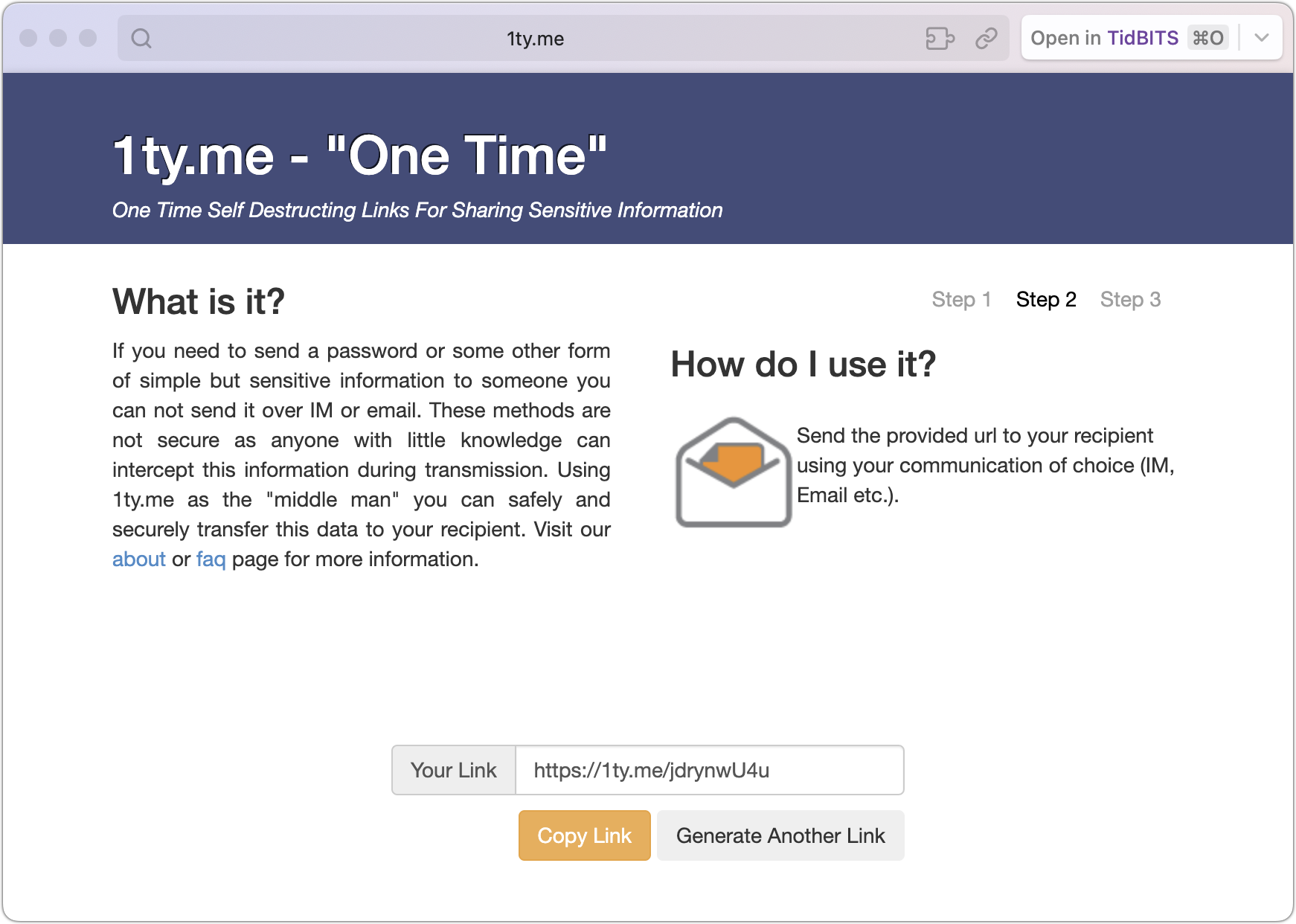
- Self-destructing links: Services like 1ty.me and One-Time Secret generate encrypted links that contain text. Once the recipient views the link, the server deletes the data, and the link self-destructs. If the recipient reports the link was already used, you know it was compromised. Be aware that some email systems automatically scan links, which could trigger premature self-destruction.
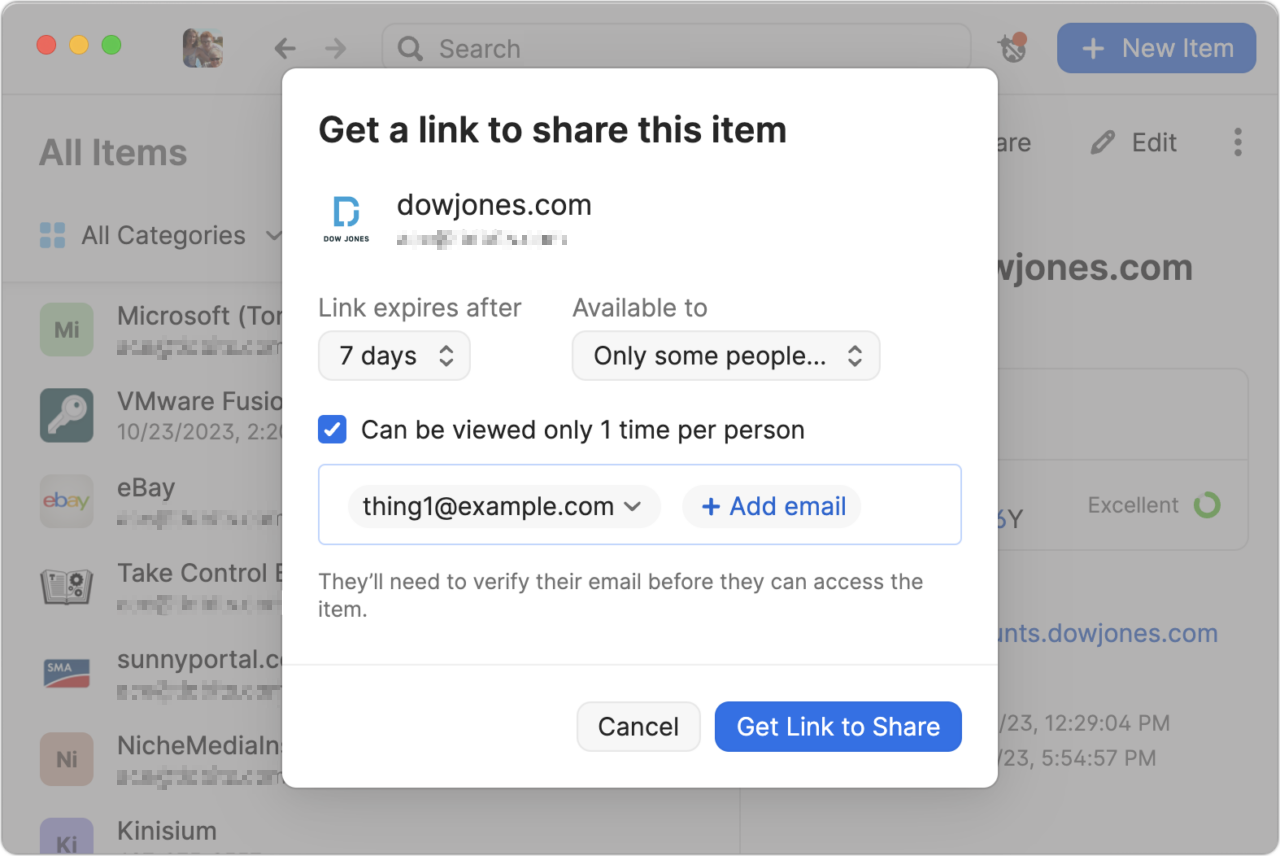
- Password manager sharing: 1Password, Bitwarden, and some other password managers (but not Apple’s Passwords) offer secure sharing features that make it easy to share credentials with someone who needs to access a particular account. You can create links with expiration dates, limit access to specific email addresses, and cause links to self-destruct after being viewed once.
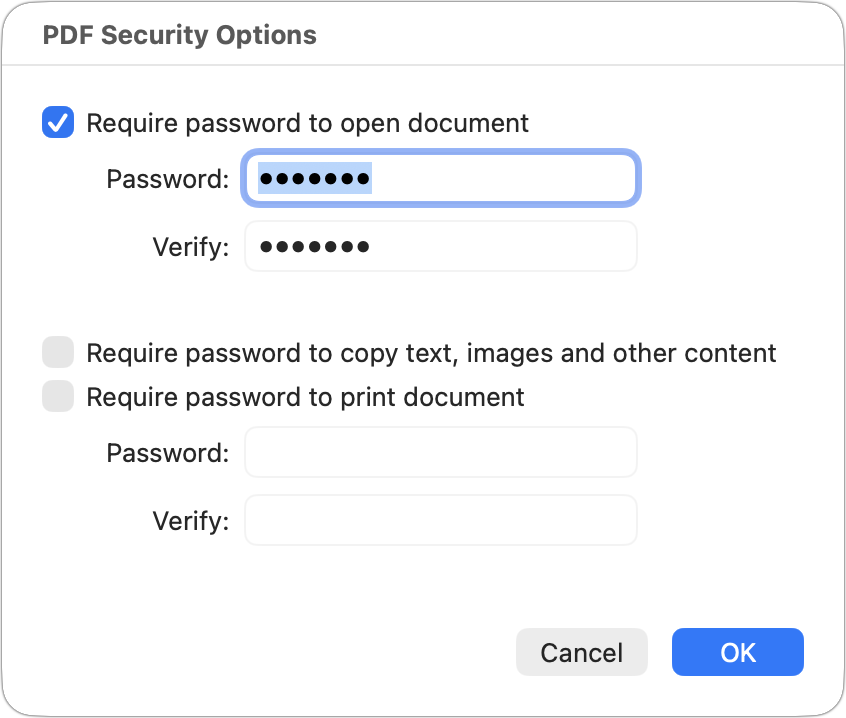
- Password-protected PDF: For documents that could be printed, create a password-protected PDF. From nearly any app, choose File > Print, click the PDF menu at the bottom, and choose Save As PDF. In the Save dialog that appears, click Security Options, select “Require password to open document,” and enter a strong password (online services can remove weak passwords). Share the file however you like, but send the password through a different channel, preferably via an expiring link.
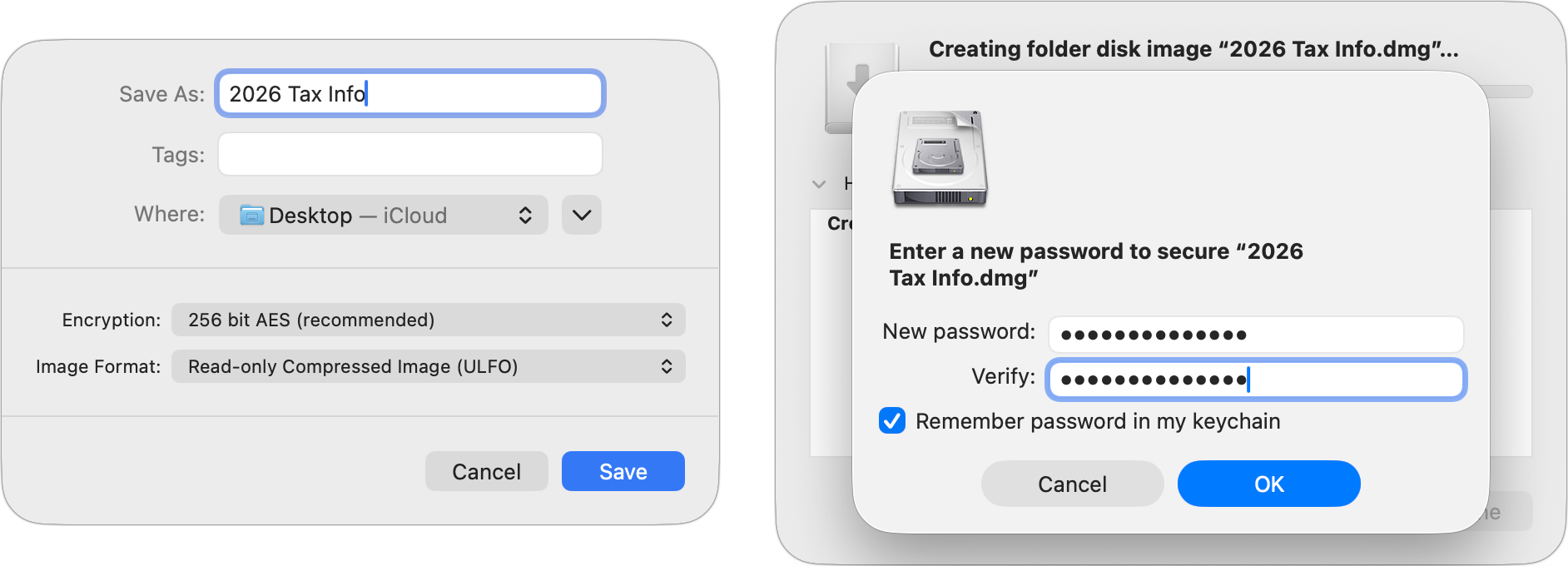
- Password-protected disk image: For Mac users sharing files that can’t easily become PDFs, or for sharing collections of files, create a password-protected disk image. In Disk Utility, create a new compressed disk image (File > New Image > Image from Folder), choose an encryption option (256-bit for more sensitive information), and enter a strong password. Again, share the password separately, ideally via an expiring link.
- Password-protected Zip archive: A password-protected Zip archive serves the same purpose and may be easier for Windows users to extract. Apps like Keka and BetterZip can create these. For the fastest approach, open Terminal, type
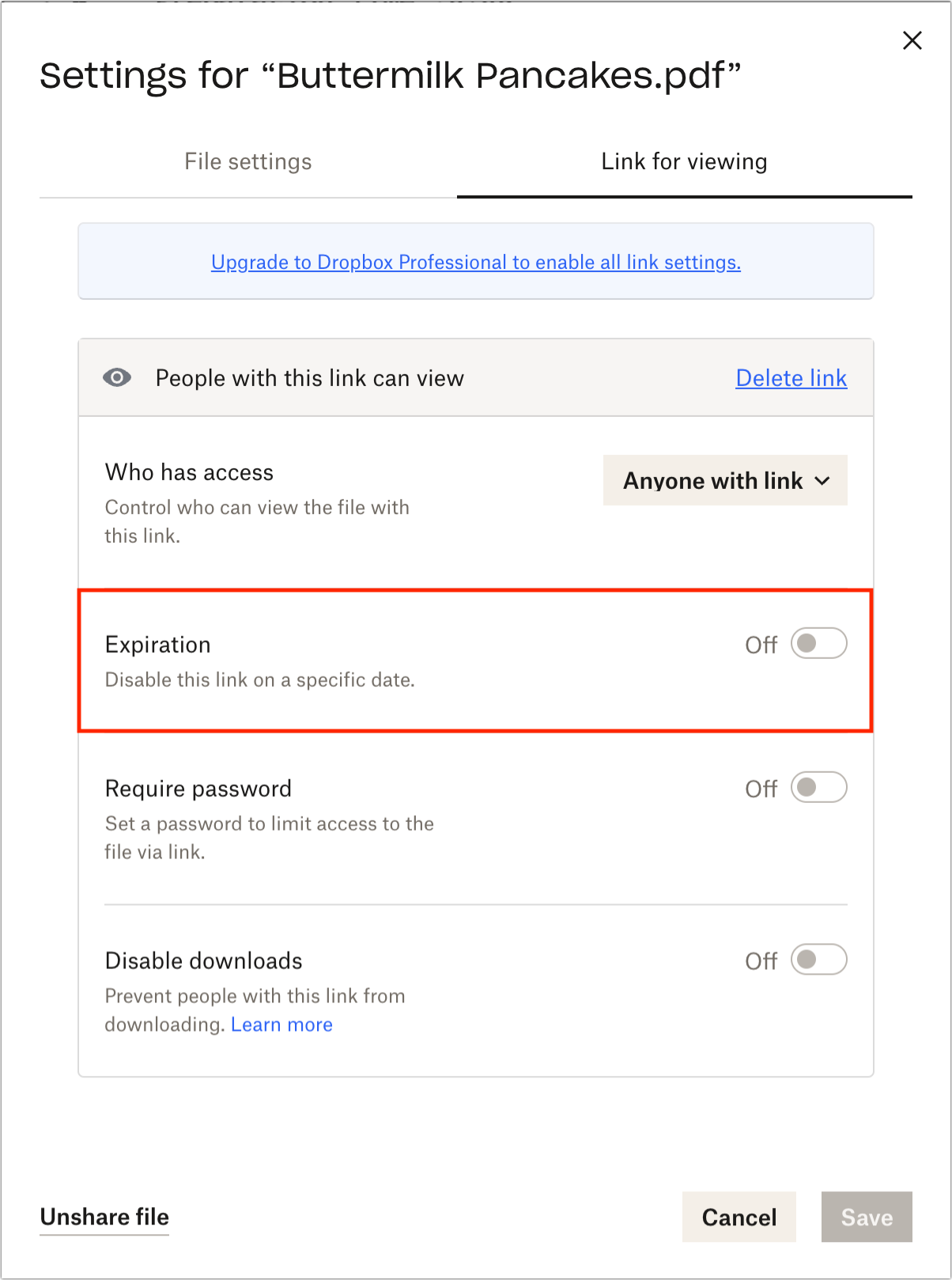
zip -er ~/Desktop/filename.zip(with a space at the end), drag in the files you want to compress, press Return, and enter your desired password when prompted. - Time-expiring cloud storage links: Some cloud storage services offer links that expire after a specified time. Dropbox Professional supports this feature, enabling you to share files while ensuring that links become useless in the event of a breach.
There’s no one-size-fits-all solution for securely sharing sensitive information. Match your approach to the sensitivity of the data, your recipient’s capabilities, and how long they need access.
(Featured image by iStock.com/metamorworks)
Social Media: Need to share passwords, financial details, or sensitive documents securely? Email alone isn’t safe enough. Learn eight practical methods—from self-destructing links to encrypted disk images—that protect your data in transit and at rest.