
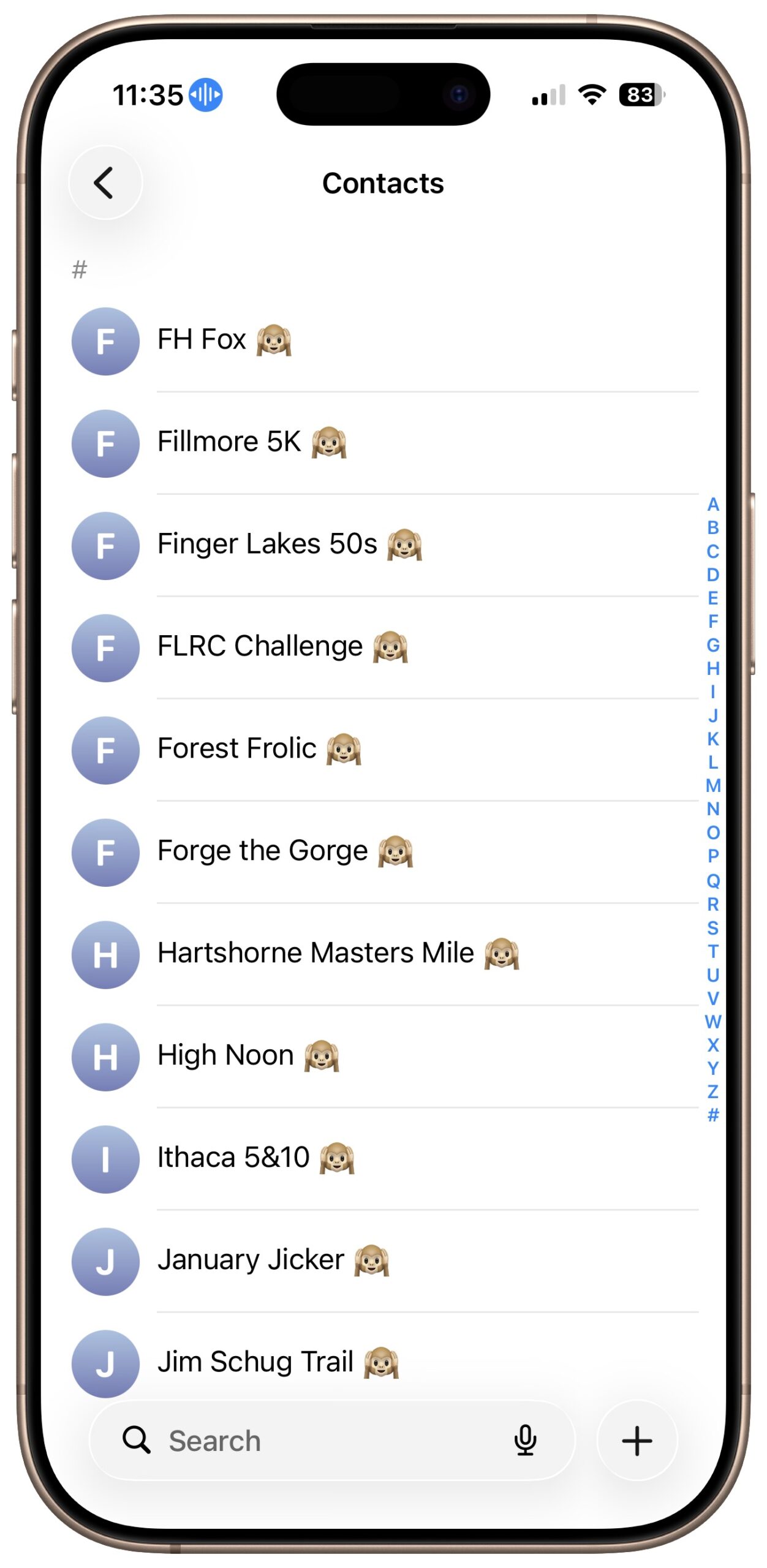
Apple’s Dictation feature is a great way to avoid slow typing on the iPhone and iPad, and it can be welcome on the Mac as well. But it struggles with proper nouns—it guesses wildly at unfamiliar names and often fails to capitalize common words that are part of a name (so you get “New York Public library”). Apple doesn’t provide a user-editable dictionary, but there’s a backdoor solution: create entries in Contacts. When you create a fake contact for a troublesome word or phrase, Dictation learns to recognize it correctly across all your Apple devices. Put the word or phrase in the First Name field and add an emoji like 🙉 in the Last Name field so these fake contacts sort to the bottom of your Contacts list and don’t clutter the display. For stubborn words, you may need to train Dictation by dictating a few practice sentences in Notes and correcting mistakes when iOS offers alternatives. This trick works for place names, organization names, technical terms, or any word that Dictation consistently gets wrong.
(Featured image by iStock.com/Jacob Wackerhausen)
Social Media: Frustrated when Dictation on the iPhone mangles what you meant to say? Create fake contacts for troublesome words, and Dictation will learn to recognize them correctly across all your Apple devices.